Printing
The purpose of this tutorial is to help you understand the printing process and help you create new print formats. Note: there is an example/demo of creating and deploying a Jasper Report to iDempiere in the below video named "Jasper Reports Deployment Options"Introduction to Printing
Print Format (native) Pros and Cons
Jasper Report Pros and Cons
Business Intelligence Pros and Cons
Print Format (native) Quick Look - Table
- Introduction to the Printing Architecture
- More Detail about iDempiere and ADempiere Native Print Formats
Print Format (native) Quick Look - Form
- Find the Print Format record you want to modify.
- Click the Copy toolbar button to make a copy of the Print Format header record. Be sure to give the new Print Format a unique Name and Description. The Description is important because (unfortunately) the next step will modify the Print Format name. You can use the Description field to find your new Print Format (just in case).
- From the new header (copy), click the Gear toolbar button to copy the contents of the old Print Format to the new one.
- You now have a complete copy of the Print Format that you can modify and propagate to other clients without risk of updating/depending on the current GW version.
Introduction to the Printing Architecture
This is more focused on Print Format (native), but it is applicable to how Jasper Reports are launched as well.More Detail about iDempiere and ADempiere Native Print Formats
This is more focused on Print Format (native), but it is applicable to how Jasper Reports are launched as well.Jasper Studio Installation
Jasper Reports Deployment Options
Jasper Studio Version Considerations
How do you know what version iDempiere is using:- find /opt/idempiere-server/ -name *jasper*
- note for 7.1: ./plugins/net.sf.jasperreports.engine_6.6.0.jar
- You can set the compatibility for what get created in the jrxml
- You can set the compatibility for what is used to compile. See 'Compiler Settings' drop down. Download older versions here.
Configure iDempiere Data Source in Eclipse
The Jasper Studio plugin includes a PostgreSQL driver. You configure your data source as follows:- JDBC Driver: org.postgresql.Driver
- JDBC Url: jdbc:postgresql://localhost:5432/idempiere
- assumes the database is located on the same machine (localhost)
- assumes your DB port is 5432
- assumes your database name is idempiere
- Username: adempiere
Pulling Images Dynamically in Jasper from iDempiere
It is frequently asked about pulling images from iDempiere attachments for use in Jasper as a means to dynamically load images. I believe this is possible; however it is difficult. I believe a better solution is create an iDempiere URL field on a record (instead of using an iDempiere attachment). The URL field will point to an image. You can use this URL field as a parameter to the jasper report or as a column in jasper's result set. Either way, it will be available for use as a jasper variable in the report's image path. Here is a discussion that offers more details.Multi-Language (Translation) in Jasper
See google group discussionPrint Formats with Complicated Line Details
There are times when you need to display much line information in Orders, Shipments, Receipts, Invoices etc... Below is a picture of how you can include a great deal of information in an organized manner. Notice that I removed column headers for the line section. Instead, I am using field prefixes to label each field for easy identification. This type of example line display can scale to 30+ fields for a given line and still remain readable.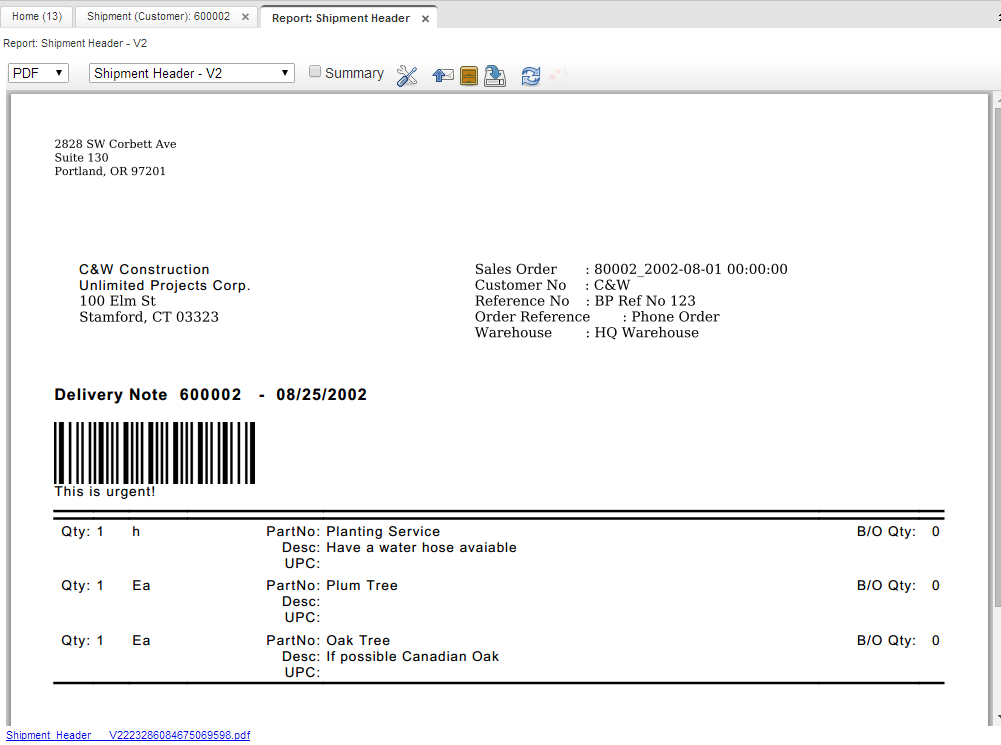 You can download the above example. Here are the instructions to install:
- Download the above zip file.
- Log in as System Administrator Role
- Open the Pack In window
- Save a new record
- Attach the above file
- Process the Pack In
- Log in to your normal client
- Print a shipment
- In the upper right corner of your shipment printout, click the drop down and choose the "Shipment Header -V2" option
- Note: this print format exists as System. You can copy to your client by clicking the wrench and screwdriver icon and making a copy of the print format header and line records. Do not forget to click the Gear to copy the print format lines as well.
Helpful Links
- Using Jasper in ADempiere (very applicable to iDempiere)
- Using Jasper in Forms
- iDempiere's Jasper Parameter for referencing files
- Thomas Bayen's Jasper Plugin
What is not covered yet
- Creating a Jasper Studio project and report for deployment via a web server
- Creating a Jasper Studio project and report for deployment via a plugin project