Projects
The purpose of this video series is to discuss and demonstration how to use iDempiere Project manage repeatable process, manage project financials, automate the creation of orders from a project and more...Project Introduction
- Purpose
- Strong financial project management
- Some project mgt scheduling
- Some time tracking
- No support for task timing and resource loading
- Use Case Concepts
- Template for repeatable process - multiple concepts
- Document automation - creates project foot prints
- Example Uses
- Capital equipment manufacturing
- Sales cycles
iDempiere Project Accounting Time and Materials Services Demo
- Log in as System client => System Administrator role
- Open the 'Invoice (Vendor)' record in the Window, Tab and Field window.
- Navigate to the 'Invoice Line' record in the Tab sub-tab and
- Navigate to the Field Sequence sub-tab
- Find the Phase or Task (or both) fields in the left side of the display and drag them to the right side. Place them next to the Project field.
- Navigate to the 'Invoice Line' record in the Tab sub-tab => 'C_Phase_ID' record in the Field sub-tab
- Zoom to the Column, check the 'Updatable' checkbox and save the Column record.
- Log Out and Log in as your client's admin
- Open the Invoice (Vendor), create. complete and post a vendor invoice.
- To confirm the phase/task fields posted, open phppgadmin and see the posting
- Alternatively, you can update the Accounting Fact Details window to include both the Phase and Task fields.
Project Work Order Demonstration
This video walks you through the process of issuing a project expenses and inventory to the project's WIP account.- 0:00:00 Introduction
- 0:01:00 Create the Project Header
- 0:02:30 Create the Project's Namesake Product - will use when close Project
- 0:03:00 Create Project Phase
- 0:04:00 Create service Phase Line
- 0:05:45 Create product/material Phase Line
- 0:06:45 Create AP - Purchase Orders for Project (Generate PO from Project)
- 0:08:15 Create service Material Receipt from Project Purchase Order
- 0:11::30 Create product/material Material Receipt from PO
- 0:13:00 Issue expenses and inventory back to Project WIP
- 0:15:45 Review Project's Financials (WIP Balance) (Income Statement, Balance Sheet, Trial Balance)
- 0:17:00 (SEE NOTE BELOW) Close the project and Configure Project's Namesake Product to receive the WIP balance
- Note: to close the Project, run the Project's "Close Project" process from the Project's Gear toolbar icon
- 0:20:15 Use Cost Adjustment to move the WIP balance from the Project to the Product
- 0:22:00 Create Sales Order/Shipment/Customer Invoice to Customer to recognize project's COGS and Revenue
- 0:24:30 Review Project financials
- You do not need to create a Purchase Order and Material Receipt to transfer the WIP from the project to a product. Instead...
- Step 1: Create a new product with the following attributes:
- Product Type = "Service"
- Product Category = a product category where the Accounting sub-tab has a Costing Method = "Standard Costing". This enables the shipment to post.
- Product => Accounting subtab => Product Asset field should point to your Project WIP account
- Product => Accounting subtab => Product COGs field should point to your Project Expense account
- Step 2: Create a Cost Adjustment record with a Costing Method of "Standard Costing".
- Step 3: Add your service product to Cost Adjustment Line and set the price to the value of your WIP balance
- Step 4: Complete and Post the Cost Adjustment - nothing should post
- Step 5: Create your Sales Order as described in the above video
- Step 6: Confirm your Shipment posted as expected.
Project Manufacturing Discussion
Project High-Level Concepts - Project, Project Type, Project Cycle/Report
- Project Type
- Serves as a template for project creation
- Provides hooks for project reporting
- Project Cycle (Reporting)
- Groups multiple phases into logical steps
- Project
- Transactional window - sort of…
- More of an Instance window
Project Concept - Project Category Field on Project Type Window
- General
- Service - currently copies over Project Type Phase and Task records
- Work Order
- Allows Project Issue - material or services
- Value issues to project goes to Project WIP
- Asset
- Allows Project Issue - material or services
- Value issues to project goes to Project Asset
Project Line Level Field - Changing Sub-Tabs
- c_project
- c_projectphase (phase)
- c_projecttask (task)
- c_projectline (Project Line, Phase Line, Task Line)
Project Type and Project Relationship - Part 1
Project General Relationship - Part 2
Project Window - Project Tab - Field by Field
- See this example as a reference to add a project tree to your Project window.
- The "Standard Phase" field has impacts on the Project Cycle Reporing. Specifically, the link between a Project and a Project Cycle => Step is through the Project's "Standard Phase" field.
- The Committed Amount is the amount the customer is willing or committed to pay. This amount is entered at the Project Task or Project Phase.
Project Window - Phase and Task Tab - Field by Field
- The Committed Amount is the amount the customer is willing or committed to pay. This amount is entered at the Project Task or Project Phase and will be automatically summed at higher levels - all the way to the Project header.
Project Window - Project Line Tab - Field by Field
Generate Sales Order from Project Phase
Generate Purchase Order from Project
Create Project from a Project Template
Project Cycle Reporting
Recommended Project Enhancements
- There are times when you would not want the project Cycle Reporting limited to a specific Project Type. An example includes creating a report that shows all project (regardless of Project Type) that are in the Initial Phase.
Recommended Project Enhancements Part 2 and Part 3
Coming soon...Creating a Fixed Asset from a Project with a Asset Balance
The Create Asset from Project process (FA_ProjectCreateAsset) performs the following:- Closes the project
- Creates a Fixed Asset from the closed project.
- The value of the asset is derived from the project's "Project Balance" field
- C_Project_ID parameter
- Removed 1=2 from the display logic
- Added the "C_Project_ID" System Element
- M_Product_ID parameter -
- This parameter was missing
2017-03-30 Project and Time sheet Accounting Discussion
The purposes of this meeting were to (1) create a common understand of project and timesheet accounting and (2) create a road map to make iDempiere a great project/timesheet accounting system.- 0:00:00 Introduction
- 0:03:45 Assumptions
- 0:05:45 Trial balance of Timesheet entries
- 0:19:00 discussion of UnEarned Revenue
- 0:32:00 WIP vs WIP Variance
- 0:36:00 Delivery of Service
- 0:40:00 create Expense Report record
- 0:44:30 create Product (service)
- 0:46:15 create Project
- 0:50:00 Issue to Project
- 0:68:30 needs to make Timesheet accounting more complete/nice
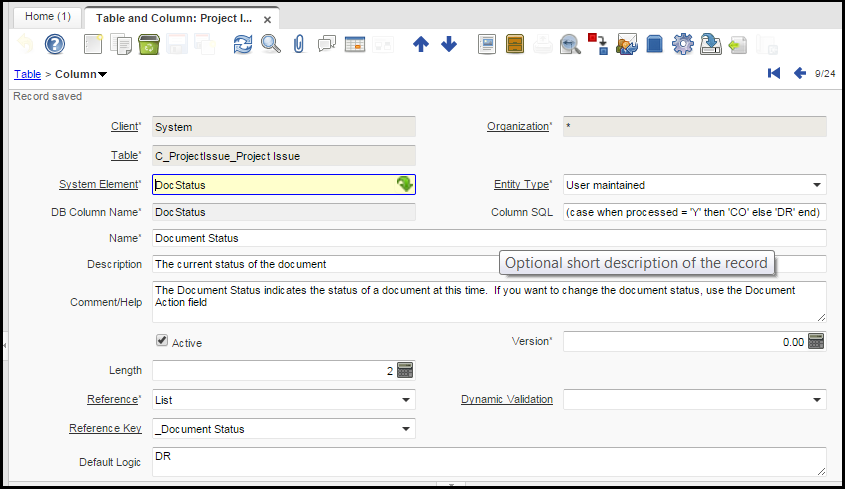
Project Issue Document Status (DocStatus) Column SQL (ColSQL) to Post and View Postings
I had to add a new column to the C_ProjectIssue table named DocStatus. I set the Column SQL field to read "(case when processed = 'Y' then 'CO' else 'DR' end)" - no quotes. The purpose of this change was to make the system think the document was completed so that you (the user) can post it and see the resulting posting. Otherwise the system would given you an error that reads "Document must be Complete or Closed to view Accounting".